Creating a .STL File: Difference between revisions
Programming (talk | contribs) No edit summary |
Programming (talk | contribs) No edit summary |
||
| Line 21: | Line 21: | ||
#<p style="margin-top: 40px;">Update the '3D Printed Parts Requests' spreadsheet</p> | #<p style="margin-top: 40px;">Update the '3D Printed Parts Requests' spreadsheet</p> | ||
#*Go to 'Robot Design' channel | #*Go to 'Robot Design' channel | ||
#*Open the '3D Printed Parts Requests.xlsx' file, which is now a tab for 2026 | |||
#*Open the '3D Printed Parts Requests.xlsx' file | |||
#*Edit a row at the top of the spreadsheet (around row 5) | #*Edit a row at the top of the spreadsheet (around row 5) | ||
#*Fill in columns A thru K ('File Name' thru 'Other Notes'), do not enter anything in the other columns | #*Fill in columns A thru K ('File Name' thru 'Other Notes'), do not enter anything in the other columns | ||
#*In the 'Other Notes' column, indicate your preferred color | #*In the 'Other Notes' column, indicate your preferred color | ||
#<p style="margin-top: 40px;">Inform Mr. Weisbrod (for | #<p style="margin-top: 40px;">Inform Mr. Weisbrod (for 2026) that you uploaded the .STL file and updated the spreadsheet</p> | ||
Latest revision as of 11:44, 2 February 2026
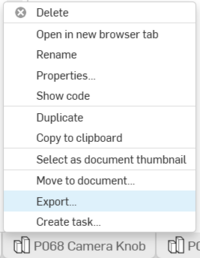
Right-click on the tab for the Part Studio part and select "Export".
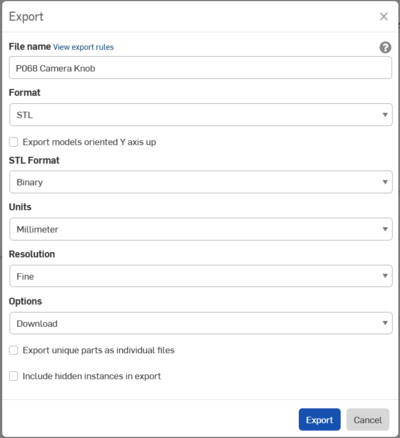
In the dialog box that appears:
- Make sure the 'File name' matches the part name.
NOTE: if you have had this part 3D printed before, then add a version to the file name. For example, if this is the second time then add ' v2' to the end of the file name.
Set 'Format' to "STL".
Do NOT check 'Export models oriented Y axis up
Set 'STL Format' to "Binary".
Set 'Units' to "Millimeter".
Set 'Resolution' to "Fine".
Set 'Options' to "Download".
There should be no need to check 'Export unique parts...' because you should have only one part in the drawing.
You should not need to check 'Include hidden instances...' because you should only have one part in the drawing.
- Make sure the 'File name' matches the part name.
Click 'Export'
NOTE: The file will be saved into your Downloads folder (e.g. C:\Users\username\Downloads)Copy the .STL file to Teams
- Go to 'Robot Design' channel
- Go to 'Shared' tab
- Go to the build season specific year folder (e.g. 2025-2026)
- Go to 'Build Season' folder
- Go to '3D Printing' folder
- Go to 'Requested Parts' folder
- Select your file in Windows File Explorer and drag it into 'Requested Parts' folder
Update the '3D Printed Parts Requests' spreadsheet
- Go to 'Robot Design' channel
- Open the '3D Printed Parts Requests.xlsx' file, which is now a tab for 2026
- Edit a row at the top of the spreadsheet (around row 5)
- Fill in columns A thru K ('File Name' thru 'Other Notes'), do not enter anything in the other columns
- In the 'Other Notes' column, indicate your preferred color
Inform Mr. Weisbrod (for 2026) that you uploaded the .STL file and updated the spreadsheet


